 GIFFrame
Sharing GIFs
How to reduce GIF file size without losing the message
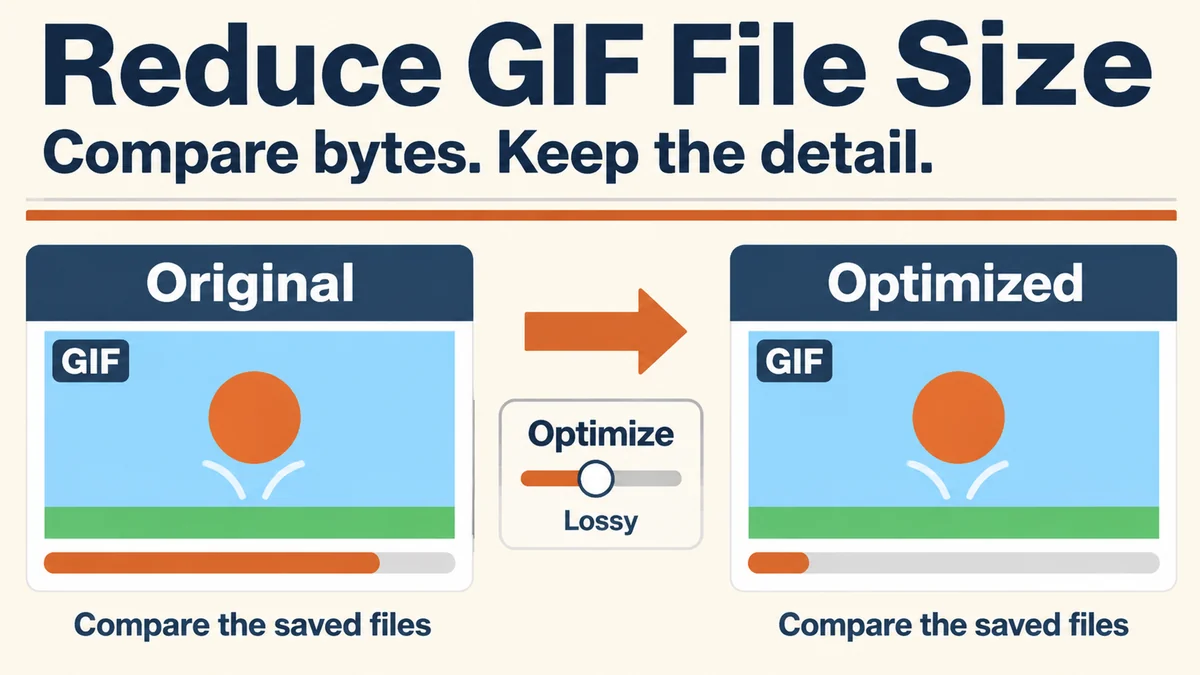
Learning how to reduce GIF file size is easier when you separate three decisions: how much visual detail to keep, how large the picture needs to appear, and how many changing frames the message needs. Start by checking the actual file bytes and the limit you want to meet. Then make one change, export a copy, and compare it with the original. This guide explains the controls in GIFFrame and a practical order for choosing your next adjustment.
How to reduce GIF file size: measure the starting point
Write down the original file size and the upload limit. A picture's width and height describe its pixel dimensions; its file size describes the bytes stored on disk. They are related, but not interchangeable. Making an image appear smaller with a webpage's display styling does not shrink the file that is uploaded. Judge your result using the saved download's size.
Check how the destination expresses its limit. An exact byte limit is more useful than an approximate label, and a file manager may round the number it displays. If the upload field says 256 KB, do not assume a displayed 256 KB download will always be accepted. Aim below the boundary and try the actual upload after checking the exported animation.
How to reduce GIF file size with optimization controls
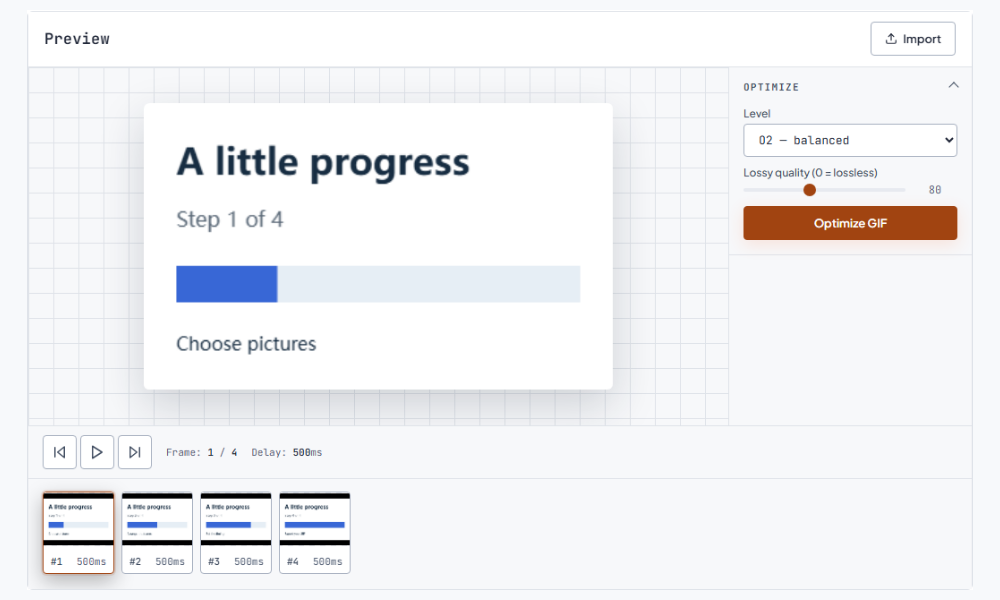
Open the GIF size reducer and add your animation. The browser processes the file on your device. GIFFrame exposes optimization levels O1, O2, and O3 alongside a lossy setting. Start with one configuration and keep a note of it. The useful result is the combination of saved bytes and acceptable appearance, rather than the highest-looking number in a control.
The lossy range is 0 to 200, with 80 as the default. Set it to 0 to turn intentional lossy reduction off for a first comparison, then click Optimize GIF. Compare the input and output bytes, choose Download optimized GIF, and open that saved file on your device to inspect it. The workspace preview still shows the original. An optimization-only pass may not shrink an already efficiently encoded file.
If more savings are needed, increase the lossy setting gradually, click Optimize GIF again, and download another copy. Examine the parts that carry the message: small lettering, a character's face, a moving edge, or a smooth background. A file can meet the limit while making the essential detail hard to read. Compare the same moment in the original and the saved compressed animation before choosing the version to share.
Resize when the picture is larger than its destination
A wide animation intended for a small message preview may contain more pixels than the viewer needs. Reducing both dimensions can be an effective next step. For example, changing 800 by 600 pixels to 400 by 300 leaves one quarter of the pixel area. The byte reduction will depend on the animation's content and encoding; it is not guaranteed to follow that same ratio.
Use resize GIF for Discord to set dimensions, including custom sizes, and keep the aspect ratio locked when you want to preserve the shape. Check text and fine lines at the new size. If they become unreadable, return to a larger version and try compression changes instead. A destination's current requirements decide the final dimensions and byte limit.
Reduce repeated content without breaking the explanation
A GIF assembled from many similar pictures may have room for a shorter sequence. Remove frames that add no visible step, or shorten an unnecessary introduction. Work on a copy and replay the result after every change. Removing every other frame without thinking about timing can make movement jerky or change how long the whole animation takes to play.
For precise sequence work, use the advanced GIF editor to inspect frames and delays together. If two consecutive pictures are identical, keeping one with a longer pause may express the same idea more simply. Do not assume every removed frame produces equal savings: an encoder can already represent unchanged areas efficiently. Compare the exported bytes instead of estimating from frame count alone.
Choose the smallest version that still works
Keep a short comparison record: dimensions, optimization level, lossy value, exported bytes, and the visible trade-off. This makes it easier to stop at a good result rather than compressing repeatedly from an already degraded copy. Return to the original for each serious comparison. Once a version fits the intended limit and the motion remains clear, try it in the actual destination.
Frequently asked questions
Can I reduce GIF file size without losing quality?
Sometimes optimization can save bytes while preserving the animation, but the savings depend on the original encoding. Try a lossy value of 0 and compare the output. If it is still too large, reducing dimensions, visual detail, or sequence length involves a visible or structural trade-off.
Can GIFFrame automatically compress to exactly 256 KB?
The compressor provides optimization settings and actual byte comparisons, rather than an automatic exact-size target. Adjust a setting, click Optimize GIF, download the optimized copy, and compare its size with the required limit. Leave a little room below the boundary and check the real upload.