 GIFFrame
Drop a GIF here将 GIF 拖到这里
Processed on your device在设备上处理
Make GIF transparent when a flat background leaves an unwanted box around your animation. Open the GIF, choose the background color, and adjust tolerance to remove matching pixels across its frames. This workflow suits simple stickers, icons, and graphics whose background is distinct from the subject. Start with a low tolerance, inspect the edges and lettering, then export a copy with transparency. The color removal happens in your browser, and you can check the whole loop before using the result on a page or slide.纯色底让动画周围出现多余方框时,可以通过移除背景色制作透明 GIF。打开文件,选取背景颜色,调整容差,工具会处理动画各帧中的匹配像素。这种方式适合背景与主体颜色区分明显的贴纸、图标和图形。先从低容差开始,检查边缘与文字,再导出透明副本。处理在浏览器中完成,使用前可以查看完整循环。
Processed on your device在设备上处理
Make GIF transparent for a sticker, small logo animation, or illustrated reaction when the source has a consistent flat background. A single-color field gives the color matcher a clear starting point. Look at both the border and the inside of the subject before applying the edit. If a white background surrounds white lettering, removing white also affects those letters. A graphic with a different background color is easier to separate. For a designed animation, choosing a contrasting export background in the original drawing application can make this later step more predictable and reduce cleanup around the subject.纯色背景的贴纸、小型标志动画或插画反应图,比较适合用颜色匹配制作透明效果。操作前要同时查看外部背景和主体内部。如果白底包围着白色文字,移除白色也会影响文字。背景与主体颜色区别越明显,越容易分离。自行制作的动画可以先在绘图软件中选择与主体不同的背景色,再进行透明处理,以减少后续边缘清理。
Choose the color that actually appears behind the subject, then begin with a small tolerance. The match compares color channels and includes pixels close enough to the selected value. Raising tolerance can remove near-matching background shades, but it also includes more of the subject if similar colors appear there. Check a small change before making another one. Make GIF transparent with the lowest setting that removes the unwanted field cleanly. If you have already removed too much, reopen the original and try a lower value; increasing tolerance further will not restore pixels that disappeared in the earlier edit.先选取主体背后实际出现的颜色,再从较小容差开始。匹配会比较颜色通道,并包含与所选颜色足够接近的像素。提高容差能移除更多近似底色,也可能波及主体中的相似颜色。建议每次小幅调整并检查,以刚好清除多余背景的较低设置为目标。若已经删掉太多,请重新打开原件后降低容差;继续提高数值不会恢复已被移除的像素。
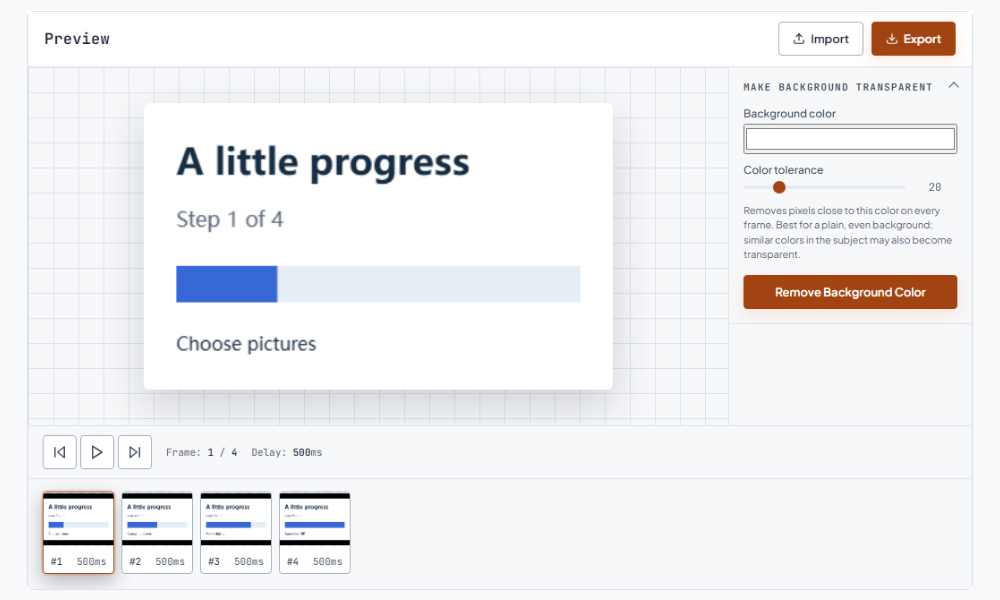
GIF transparency is a choice between visible and transparent pixels rather than a soft range of partial opacity. An edge that was blended into a light background can keep a pale outline when placed on a dark page. Inspect the exported copy on the background where it will actually appear. Look closely around curves, small text, and thin lines, where a few changed pixels are more noticeable. When possible, prepare clean edges in the source artwork. This gives the color removal a clearer boundary than trying to recover a smooth edge after it has already been blended with the old background.GIF 的透明效果是像素可见或透明的选择,不是连续的半透明范围。原本与浅色背景混合的边缘,放到深色页面上可能出现浅色轮廓。应把导出文件放到实际使用的底色上,重点查看曲线、小字和细线。能调整源素材时,先在原始图形中准备清晰边缘,通常比移除已混合的背景后再修复更容易。
An animated subject can cover a color in one frame and reveal it in another. Check the beginning, middle, and end, then play the complete loop to find flicker or missing detail. Make GIF transparent only after checking that the selected color remains a suitable match throughout the sequence. For example, a character may turn and expose a pale area that was hidden in the first frame. That area can be removed if it matches the chosen background. The timeline helps you locate the affected moment. Compare with the original GIF when you need to distinguish the edit from an existing source detail.动画主体会移动,某一帧遮住的区域,下一帧可能露出来。除了开头、中间和结尾,还应完整播放,检查闪烁或缺失细节。例如角色转身后露出的浅色区域,可能与被选背景色相同而被移除。时间轴可以帮助定位受影响的时刻。有疑问时,与原 GIF 对照,区分处理带来的变化和源文件本来就存在的细节。
A color-based GIF background remover is a direct fit for a flat field that is different from the subject. It matches colors throughout the frame rather than identifying an object and separating its surroundings. A busy photograph, changing scenery, or a subject sharing the same background colors calls for a different approach, such as editing the source artwork or using a segmentation tool. Choose according to the source rather than increasing tolerance until important details disappear. For animations you create yourself, exporting against a carefully chosen solid color can keep the later transparency workflow simple and easy to inspect.按颜色移除适合与主体颜色不同的平整底色。它会匹配整帧颜色,不会识别物体后再分离周围环境。复杂照片、不断变化的场景,或与背景颜色接近的主体,更适合先修改源素材或使用分割工具。应根据素材选择方法,避免一味提高容差而丢失重要细节。自己制作动画时,可以预先选择合适的纯色底,让之后的透明处理更简单、也更容易检查。
Export the edited GIF and check it on the intended page, chat surface, or slide. A checkerboard in an editor is a preview aid; the saved file is the version to test. Keep the original alongside the export so you can make a second copy for a different background later. If the transparent result is too large for its destination, compare a compressed copy while watching the edges and small lettering. If only one frame needs to become a still illustration, extract the animation as PNG images and choose the matching picture from the downloaded archive. Continue with the GIF size reducer.导出后,放到目标网页、聊天界面或幻灯片中检查。编辑器中的棋盘格只是预览辅助,最终应检查保存的文件。保留原件,方便之后为不同底色制作副本。若透明结果仍然太大,可再比较压缩版本,并重点检查边缘和小字。如果只需要其中一帧作插图,可以拆成 PNG,再从下载的压缩包中选择对应图片。
Matching colors inside the subject are affected too. If the text and background use the same color, prepare a source with a different background or separate the artwork before color removal.主体内部的匹配色也会受影响。如果文字与背景颜色相同,可以先换用不同底色的源文件,或在源设计中分开处理。
The tool removes a selected color and nearby shades. Use a segmentation or source-editing workflow when the background contains many colors or overlaps the subject colors.这里通过选定颜色和近似色移除背景。背景颜色复杂或与主体重合时,可以先用分割工具或修改源素材。
The original edge may contain pixels blended with the old background. Test on the final background and use cleaner source edges when available.原边缘可能包含与旧底色混合的像素。请在最终底色上测试,条件允许时改用边缘更清晰的源素材。