 GIFFrame
Drop a GIF here将 GIF 拖到这里
Processed on your device在设备上处理
A GIF speed changer is useful when an animation is hard to follow, too slow for a reaction, or longer than the space where you plan to use it. GIFFrame applies a multiplier to the current delay of every frame, so the exported file carries the new timing with it. Choose a faster setting such as 1.25× or 2×, or give a tutorial more reading time with 0.75× or 0.5×. Preview one full loop after applying the change, because saved GIF timing is rounded to the format’s centisecond steps.当 GIF 动画快得看不清、反应动图太拖沓,或循环时间超过使用位置能接受的长度时,可以使用 GIF 调速工具。GIFFrame 会按倍速调整每一帧当前的停留时间,并把新节奏写入导出的文件。可以选择 1.25 倍或 2 倍让动画更利落,也可以用 0.75 倍或 0.5 倍给教程留出阅读时间。应用后先完整播放一轮,因为 GIF 会按百分之一秒的单位保存帧时间。
Processed on your device在设备上处理
A GIF speed changer changes the delay attached to each frame; it does not redraw the pictures or reorder the animation. When a frame is shown for 240 milliseconds and the next one for 120 milliseconds, a 2× setting makes them roughly 120 and 60 milliseconds. The longer pause remains longer, so the relative rhythm of a title card, gesture, or result frame is preserved. This makes a multiplier useful when the whole animation needs to move together. If only one frame needs a different pause, use the editor’s individual frame timing instead of changing the entire GIF.GIF 调速工具改变的是每帧附带的停留时间,不会重新绘制图片,也不会改变动画顺序。假设一帧显示 240 毫秒,下一帧显示 120 毫秒,设置 2 倍后,它们大约会变成 120 毫秒和 60 毫秒。原来较长的停顿仍然较长,因此标题页、动作或结果画面的相对节奏会被保留。当整段动画都需要一起变快或变慢时,倍速很方便。如果只有一帧需要不同的停顿,应在编辑器里单独设置,而不是改变整个 GIF。
Use 2× when a short reaction or looping gesture feels unnecessarily slow; a four-second loop will be about two seconds before timing rounding is applied. Use 0.5× when a fast movement needs to be studied or a caption needs more time, knowing that the same loop will be about twice as long. Smaller adjustments are often easier to read: 1.25× can tighten a demonstration without making it feel rushed, while 0.75× can add breathing room to an instruction. For a first test, choose 1.25× or 0.75×, play the exported loop, and move to 2× or 0.5× only when the result still needs a stronger change.如果短表情或循环动作显得拖沓,可以尝试 2 倍;原本四秒一轮的动画,在舍入影响前大约会变成两秒。如果快速动作需要观察,或字幕需要更多阅读时间,可以使用 0.5 倍,但同一循环大约会变成两倍长。小幅调整通常更容易阅读:1.25 倍能让操作演示更紧凑,却不至于太急;0.75 倍能给说明留出更多空间。第一次可以先试 1.25 倍或 0.75 倍,播放导出的循环,只有仍然需要明显变化时才改用 2 倍或 0.5 倍。
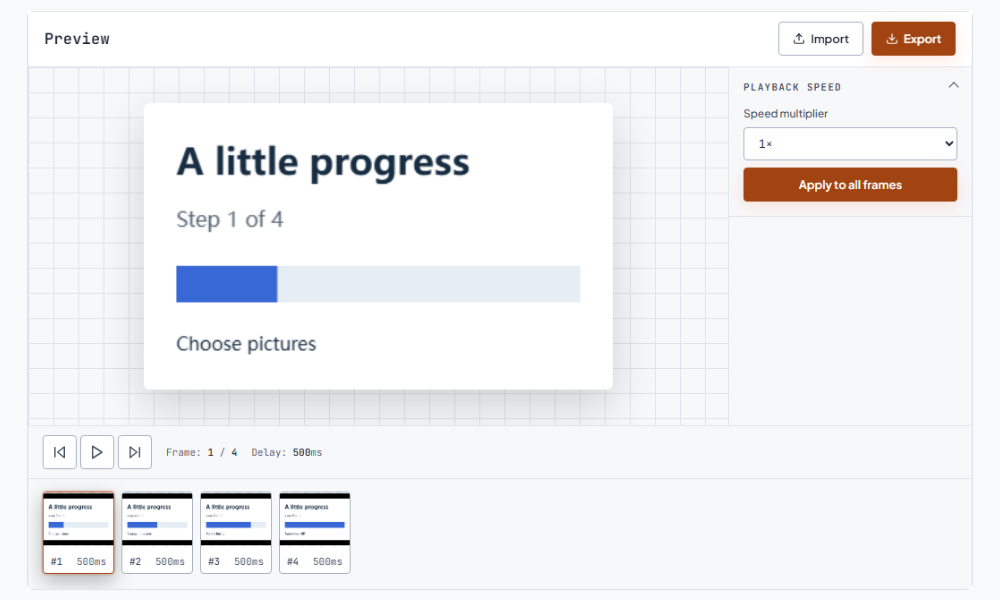
A short software demo usually needs time for the viewer to connect each action with its result. Try 0.75× when a menu opens too quickly to read, then check the longest label at the final display size. A reaction loop can benefit from the opposite adjustment: 1.25× may bring an expression or punchline forward without making the movement hard to follow. For an animation used beside written instructions, match the pace to the amount of text the reader needs to absorb. A saved timing change travels with the exported file, making it useful when the GIF will be shared outside this workspace.简短的软件演示需要让观众看清操作与结果的关系。菜单出现太快时,可以试 0.75 倍,并按实际显示大小检查最长的标签。反应图则可以尝试 1.25 倍,让表情或重点更快出现,同时保持动作容易辨认。动画与说明文字一起使用时,应按读者需要阅读的内容选择节奏。时间修改会保存在导出文件中,方便把动画分享到工作区之外。
GIF stores frame delays in hundredths of a second, so an adjusted value cannot keep every fractional millisecond. For example, dividing a 50 millisecond delay by 3 gives about 17 milliseconds, which is saved as the nearest ten-millisecond step used by the tool. With many very short frames, those small changes can add up to a loop that is not exactly the arithmetic duration. Viewers may also handle extremely short delays differently. If a high-speed export looks uneven, reopen it in the destination and try a less extreme multiplier rather than assuming the preview and every player will behave identically.GIF 以百分之一秒为单位保存帧时间,因此计算后的每个小数毫秒无法全部保留。例如,50 毫秒除以 3 约为 17 毫秒,工具保存时会取到最接近的十毫秒步进值。动画中如果有很多极短的帧,这些小差异可能累积,使整轮时长和纸面计算不完全相同。不同播放器对极短延迟的处理也可能不同。如果高速导出后动作不均匀,应在实际使用位置重新打开,并尝试幅度较小的倍速,而不是假设每个播放器都会和预览完全一致。
Each press of Apply to all frames starts with the delays currently in the editor. That means applying 2× twice is not another independent 2× experiment: the second change acts on the already shortened delays and compounds the result. To compare 2× with 1.5×, export the first version, reopen the original GIF, and apply 1.5× to that fresh copy. Name the files with their multiplier, such as reaction-1.5x.gif and reaction-2x.gif. This makes a fair comparison possible and gives you a reliable way to return to the original timing when a later edit does not work.每次点击 Apply to all frames,都会以编辑器当前的帧时间为基础。如果连续两次应用 2 倍,第二次并不是另一个独立的 2 倍实验,而是会在已经缩短的时间上继续计算,效果会叠加。要比较 2 倍和 1.5 倍,应先导出第一版,再重新打开原始 GIF,从同一份原件应用 1.5 倍。可以用 reaction-1.5x.gif、reaction-2x.gif 这样的文件名区分版本。这样比较更公平,也能在后续修改不理想时回到原来的节奏。
Use the GIF speed changer when the frame sequence is good and the whole animation needs a faster or slower rhythm. If one title frame needs a longer pause, adjust that frame individually in the editor. If the animation is too long because several poses repeat, remove redundant frames before choosing a multiplier. If the pace is correct but the file is too large, open the exported copy in the GIF size reducer and compare the optimized result. For a different direction of motion, use the GIF Reverser first or after timing, then preview the complete loop again. Keeping each operation as a separate copy makes the final choice easier to audit.当帧序列没有问题,只是整段动画需要更快或更慢的节奏时,使用 GIF 调速工具。如果只有标题帧需要多停一会儿,应在编辑器里单独改那一帧。如果动画太长是因为多个姿势重复,可以先删除多余帧,再选择倍速。节奏正确但文件太大时,把导出的副本放进 GIF 体积压缩工具,比较优化后的结果。需要改变运动方向时,可以先或后使用 GIF 倒放工具,再完整检查循环。每项操作都另存副本,最终更容易追溯和选择。
For a tutorial, test the longest caption at the actual display size. Read it once while the loop runs and check whether the next action arrives after the explanation is clear. For a reaction, watch two loops to see whether the expression lands at the intended moment. A title card may deserve a longer individual pause even when the rest of the animation should move faster. Start that edit in the advanced editor, where individual frame timing is available. Keep the chosen export with a descriptive filename so a slower tutorial version and a faster reaction version are easy to tell apart. Continue with the GIF reverser.教程可以按实际显示大小阅读最长字幕,确认说明看清后才进入下一个动作。反应图则连续观看两轮,观察表情是否在合适的时刻出现。即使整体需要加快,标题帧也可能需要单独延长停顿,这时可以进入高级编辑器调整帧时间。导出时使用有意义的文件名,方便区分较慢的教程版和较快的反应版。 接下来可以使用倒放。
Choose the GIF, select a multiplier above 1× such as 1.25× or 2× in Playback Speed, and click Apply to all frames. The tool reduces the current delay of each frame, so the exported file plays faster without changing the frame order. Watch one full exported loop before sharing it, especially when the GIF contains a caption or a short final pose.选择 GIF,在 Playback Speed 中选择大于 1 倍的倍速,例如 1.25 倍或 2 倍,然后点击 Apply to all frames。工具会减少每一帧当前的停留时间,导出的文件会在不改变帧顺序的情况下加快播放。分享前完整播放一轮导出文件,尤其要检查包含字幕或短暂结尾画面的动画。
Select a multiplier below 1×, such as 0.75× or 0.5×, and apply it to all frames. The tool lengthens each current delay while keeping the frame sequence intact. Use 0.75× when you only need more reading time and 0.5× for a clear slow-motion effect. Preview the saved file because very short or rounded delays can affect the exact final rhythm.选择小于 1 倍的倍速,例如 0.75 倍或 0.5 倍,然后应用到全部帧。工具会延长每一帧当前的停留时间,同时保留帧序列。只需要增加阅读时间时可以试 0.75 倍,需要明显慢动作效果时再用 0.5 倍。导出后要检查保存的文件,因为极短帧时间和取整可能会影响最终节奏。
GIF frame delays are saved in hundredths of a second, so a calculated delay is rounded to the format’s available timing step. The difference can accumulate across many short frames, and viewers may handle very short delays differently. Reopen the exported file in its destination and try a nearby multiplier if the motion looks uneven. A full-loop check is more reliable than judging one frame in the editor.GIF 的帧时间按百分之一秒保存,计算得到的延迟会取整到格式支持的时间步长。动画里有很多极短帧时,差异可能逐步累积;不同播放器也可能对极短延迟有不同处理。把导出文件放到实际使用位置重新打开,如果动作不均匀,可以试相邻的倍速。完整看一轮循环,比只在编辑器里观察单帧更可靠。
You can, but the second change uses the delays already changed by the first one, so the effects compound. For a fair comparison between two settings, export the first version, reopen the original GIF, and apply the second setting from the original timing. This also makes it easier to undo a choice: keep the original and label each exported copy with its multiplier.可以,但第二次调速会以第一次修改后的帧时间为基础,效果会叠加。如果要公平比较两种倍速,应先导出第一版,再重新打开原始 GIF,从原来的节奏应用第二个设置。这样也更容易撤回某个选择:保留原文件,并在每个导出副本的文件名中标注倍速。