 GIFFrame
Drop a GIF here将 GIF 拖到这里
Processed on your device在设备上处理
Resize GIF for Discord when the animation looks right but its canvas is too large, too small, or the wrong shape for the place where you want to share it. GIFFrame gives you a fixed Discord Emoji preset and editable width and height fields. Keep Lock aspect ratio on when the original proportions matter, or use fixed dimensions when a square canvas is the priority. The tool changes the pixel dimensions across the animation; check the exported byte size separately when Discord shows a file-size warning.当 GIF 动画本身没有问题,但画布尺寸太大、太小,或比例不适合 Discord 的使用位置时,可以调整 GIF 尺寸。GIFFrame 提供固定的 Discord Emoji 预设,也支持编辑宽度和高度。需要保持原始比例时打开 Lock aspect ratio;必须得到正方形画布时再使用固定尺寸。工具会把新的像素尺寸应用到整段动画,但文件字节数需要另外检查;如果 Discord 提示文件过大,还要继续压缩。
Processed on your device在设备上处理
Resize GIF for Discord when the frame sequence already tells the right story but the canvas does not fit its destination. After you choose a file, open Resize and decide whether the result needs a fixed square or a proportional reduction. The Discord Emoji preset fills both dimensions with 128 × 128 pixels. Custom fields are better for a wide reaction, a banner-shaped design, or a GIF that contains readable screen text. Click Apply Resize to update every frame, then play the result before exporting. Resizing changes the pixel dimensions of the animation; it does not by itself guarantee a smaller file in bytes.当 GIF 的帧顺序和动作都合适,只有画布不适合使用位置时,可以调整 GIF 尺寸以适配 Discord。选择文件后打开 Resize,先决定成品需要固定正方形,还是按原比例缩小。Discord Emoji 预设会把宽高都填成 128 × 128 像素。宽幅表情、横向设计,或包含可读截图文字的动画,更适合使用自定义宽高。点击 Apply Resize 后,所有帧都会更新;导出前先播放一遍。改尺寸改变的是动画的像素大小,并不会自动保证字节数一定变小。
Start with the place where the animation will appear. A small Discord emoji needs a simple silhouette that remains recognizable when the preview is tiny, so the fixed Discord Emoji preset is a practical starting point. A message attachment or a profile graphic may need more room for a caption, a face, or a moving outline; enter a custom width and height instead. For example, a 640 × 360 source can become 320 × 180 when you want a smaller copy with the same shape. If the destination only needs a square canvas, the preset is faster, but check the artwork for stretching before you share it.先根据动画的实际使用位置来选尺寸。Discord 小表情在很小的预览里也要能认出轮廓,因此固定的 Discord Emoji 预设适合用来快速开始。聊天附件或个人资料图可能需要更多空间放置字幕、面部表情或移动轮廓,这时可以自定义宽度和高度。例如,640 × 360 的源动画可以改成 320 × 180,同时保留原来的形状。如果使用位置只需要正方形画布,预设会更快,但分享前仍要检查主体有没有被拉伸。
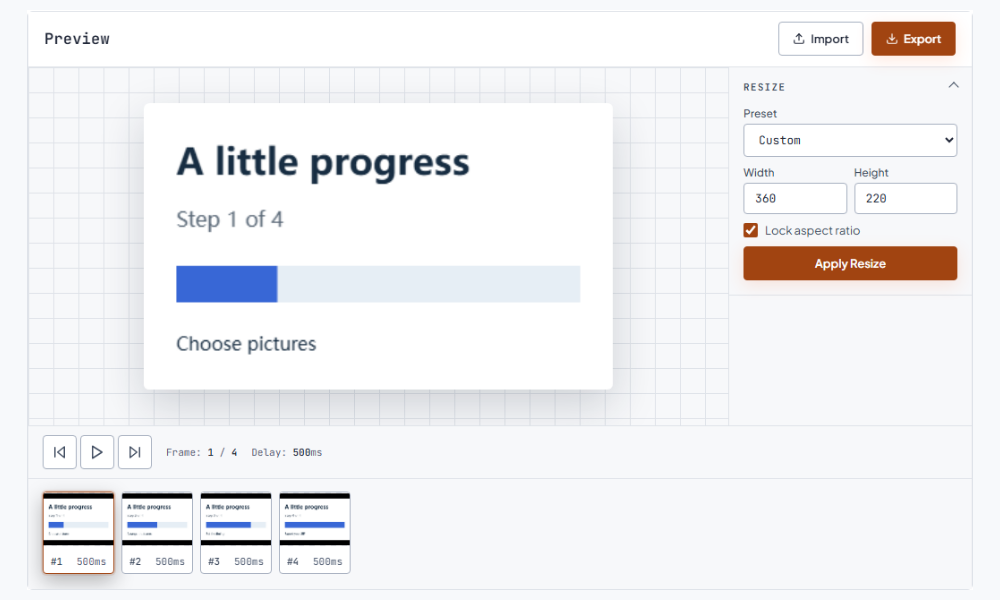
Lock aspect ratio controls how manual dimensions are calculated. With it checked, changing the width updates the height to match the source ratio, and changing the height updates the width. A 640 × 360 GIF set to 320 pixels wide therefore becomes about 180 pixels high instead of an arbitrary number. This is the safer choice for faces, logos, and illustrated scenes whose shape should not change. A fixed preset sets both fields at once, so it can use a different ratio from the source. If you need a square result without a stretched subject, crop or prepare a square source first, then resize the finished square animation. Continue with the GIF size reducer.Lock aspect ratio 决定手动填写尺寸时如何计算另一个数值。勾选后,修改宽度会按照源文件比例更新高度,修改高度也会同步更新宽度。640 × 360 的 GIF 设置为 320 像素宽时,高度大约会变成 180 像素,而不是随意填一个数字。人脸、标志和插画场景通常应使用这个选项,以免形状改变。固定预设会同时填写两个尺寸,因此可能和源文件比例不同。如果需要正方形结果又不想拉伸主体,可以先裁切或准备正方形素材,再调整整段动画。 接下来可以使用压缩。
Pixel dimensions and file size solve different problems. A smaller canvas usually gives the encoder fewer pixels to store, but the final byte count also depends on frame count, colors, and how much of the image changes from frame to frame. Export your resized copy and compare its size with the current limit shown by the Discord destination you are using. If the dimensions look right but the file is still too large, send the result to the GIF Size Reducer. Compress that copy gradually and inspect text, outlines, and color transitions after each pass. Keeping the original lets you return to a sharper source if an aggressive reduction makes the emoji muddy. Continue with the GIF speed changer.像素尺寸和文件体积解决的是两个不同的问题。画布变小后,编码器通常需要保存的像素更少,但最终字节数还会受到帧数、颜色数量,以及相邻帧变化范围的影响。先导出调整尺寸后的副本,再和当前 Discord 使用位置显示的大小限制比较。如果宽高已经合适但文件仍然太大,可以把结果交给 GIF 体积压缩工具。逐步压缩,每轮都检查文字、轮廓和颜色过渡。保留原文件,能在压缩过度导致表情变糊时回到更清晰的素材。 接下来可以使用调速。
After Apply Resize, check the first frame, a middle frame, and the last frame instead of judging only the opening image. A caption can be legible at the start and disappear when the subject moves over a busy area. A face near the edge can also be clipped in one pose even when the first frame looks balanced. For a small emoji, shrink the preview until it resembles the size people will see in chat and ask whether the outline and expression still read. If they do not, simplify the original artwork, enlarge the important subject, or choose a larger custom canvas before exporting another version.点击 Apply Resize 后,不要只看开头画面,最好检查第一帧、中间帧和最后一帧。字幕可能在第一帧清楚,但主体移动到复杂背景上时就难以阅读;靠近边缘的脸部也可能在某个姿势中被裁掉。制作小表情时,把预览缩小到接近聊天中的显示大小,确认轮廓和表情仍然容易辨认。如果看不清,可以先简化原始画面、放大主体,或改用更大的自定义画布,再导出另一版。
Use Resize GIF for Discord when the animation has the right timing and content but needs another canvas size. Use compression when the dimensions already fit and the upload is rejected because of bytes. If the subject is positioned badly, resizing alone will preserve the awkward framing; crop or edit the source first. If the motion is too quick or too slow, use the GIF Speed Changer after the canvas decision, then export and test the timing. A clean workflow is to keep one original, make a resized copy, make a compressed copy only if needed, and name each version by its dimensions so you know which file to upload.当动画内容和节奏都合适,只是需要另一种画布尺寸时,就使用 Resize GIF for Discord。如果宽高已经符合要求,但因为字节数太大而无法上传,应使用压缩工具。主体位置不合适时,单纯改尺寸只会保留原来的构图问题,应该先裁切或回到源文件编辑。动作过快或过慢时,可以在确定画布后使用 GIF 调速工具,再导出并测试节奏。建议保留一份原件,分别保存改尺寸和压缩副本,并把尺寸写进文件名,上传时更容易认出正确版本。
Start with the Discord Emoji preset, which fills the tool with a 128 × 128 pixel canvas. That gives you a consistent square starting point for a small animated emoji. The visible result still depends on the source artwork, so preview the exported file at a small size and confirm that the subject remains recognizable. Check the upload context's current byte requirement separately; pixel dimensions and file size are not the same thing.可以先选择 Discord Emoji 预设,工具会填入 128 × 128 像素的正方形画布。这是制作小尺寸动态表情时比较稳定的起点。最终效果仍然取决于原始画面,因此要把导出文件缩小预览,确认主体依然容易辨认。上传时还要单独查看使用位置当前的字节数要求,因为像素尺寸和文件体积不是一回事。
Yes. Keep Lock aspect ratio checked and edit one dimension manually; the other dimension follows the source ratio. This keeps a 16:9 or portrait animation from being squeezed into a different shape. If you choose a fixed square preset, both fields are set to the preset size, so a non-square source may need a square crop or prepared canvas before resizing.可以。勾选 Lock aspect ratio 后手动修改一个尺寸,另一个尺寸会按照源文件比例同步更新,16:9 或竖版动画就不会被压扁。如果选择固定正方形预设,两个字段会同时变成预设尺寸;非正方形源文件可能需要先裁成正方形,或准备好正方形画布再调整。
Resizing changes width and height, but bytes also come from the number of frames, colors, and changes between frames. A long animation with many detailed frames can remain large even after the canvas is smaller. Export the resized copy, compare it with the destination's current limit, and use GIFFrame's GIF Size Reducer for a separate compression pass. Review the result after each pass so important text and edges stay clear.调整尺寸只会改变宽度和高度,文件体积还取决于帧数、颜色数量和每帧之间的变化。一段帧数多、细节丰富的动画,即使画布变小也可能很大。先导出改尺寸的副本,和上传位置当前的限制比较,再使用 GIFFrame 的 GIF 体积压缩工具单独处理。每轮压缩后都要检查,确保关键文字和轮廓仍然清楚。
Resize first when the canvas is larger or shaped differently from the place where the GIF will appear. Once the dimensions are right, compress a copy if the byte size is still above the destination's limit. If the canvas already fits, skip resizing and start with compression. Keep the original so you can compare a smaller canvas with a gentler compression setting instead of repeatedly degrading the same file.如果画布比使用位置大,或比例不合适,通常先调整尺寸。宽高合适后,如果字节数仍超过上传位置的限制,再压缩一份副本。如果画布本来就合适,可以跳过调整尺寸,直接压缩。保留原文件,方便比较较小画布与较温和压缩的效果,避免反复处理同一个已经降低质量的文件。