 GIFFrame
Making GIFs
How to make a GIF from images
Knowing how to make a GIF from images is mostly about choosing what the viewer sees next and how long each picture stays on screen. A set of screenshots, drawings, or product photos can become a short looping explanation without recording a video. Begin with a small sequence, arrange the pictures, and adjust the pauses until the message is easy to follow. This browser workflow covers preparation, timing, previewing, and exporting the animation you actually want to share.
How to make a GIF from images: prepare the sequence
Choose pictures that tell one small story. A useful first project might show a folded card opening in three stages, or a software setting before and after a change. Decide whether the GIF should explain a process, show alternatives, or create a repeating gesture. That decision determines the order and whether the final picture needs a longer pause.
Prepare separate JPG, PNG, or WebP files. Keep the subject in a similar position across pictures if you want the movement to look stable. With screenshots, use the same crop so the interface does not jump around. You can name files 01, 02, and 03 to make their intended sequence obvious, then verify the actual order in the timeline.
How to make a GIF from images: upload and arrange
Open the image to GIF tool and select your pictures together. The files are processed on your device. Look at the timeline before playing the animation: the first picture establishes the starting state, the middle pictures show the change, and the last picture completes the message. Drag frames into place if the imported order differs from your plan.
Remove accidental duplicates, unless a repeated picture is serving a deliberate purpose. For a slide-like explanation, a longer frame delay usually expresses a pause more clearly than keeping several identical pictures. A single still image produces a one-frame GIF; it does not create movement by itself. Use at least two visibly different states when your goal is a changing image.
Set pauses that match the message
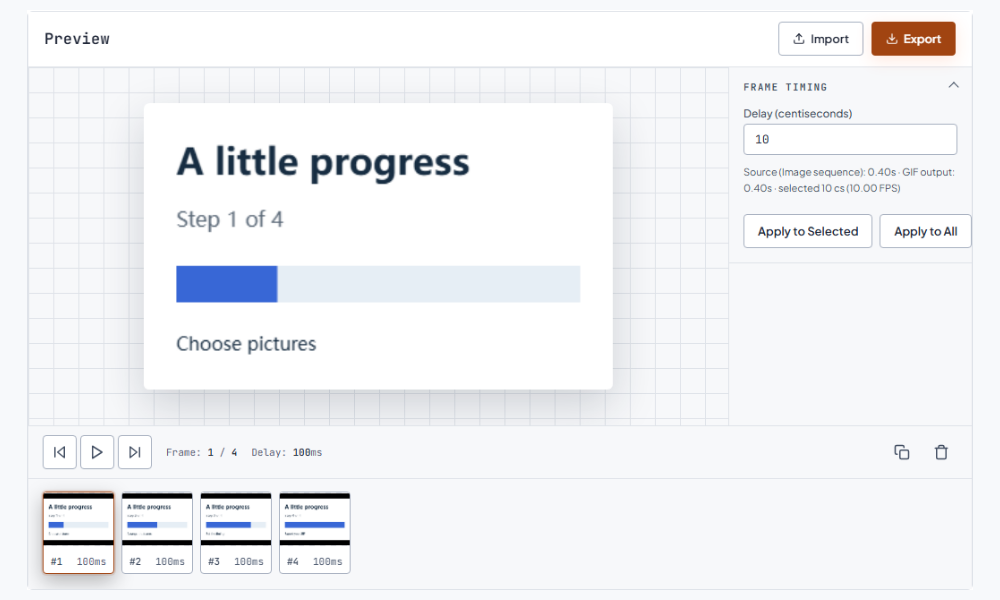
Frame delay is the time a picture stays visible before the next appears. GIFFrame's per-frame delay uses centiseconds: 10 is about one tenth of a second, 50 is half a second, and 100 is one second. Start with a duration you can easily judge, then preview. A short visual gesture and a screenshot containing instructions need different reading time.
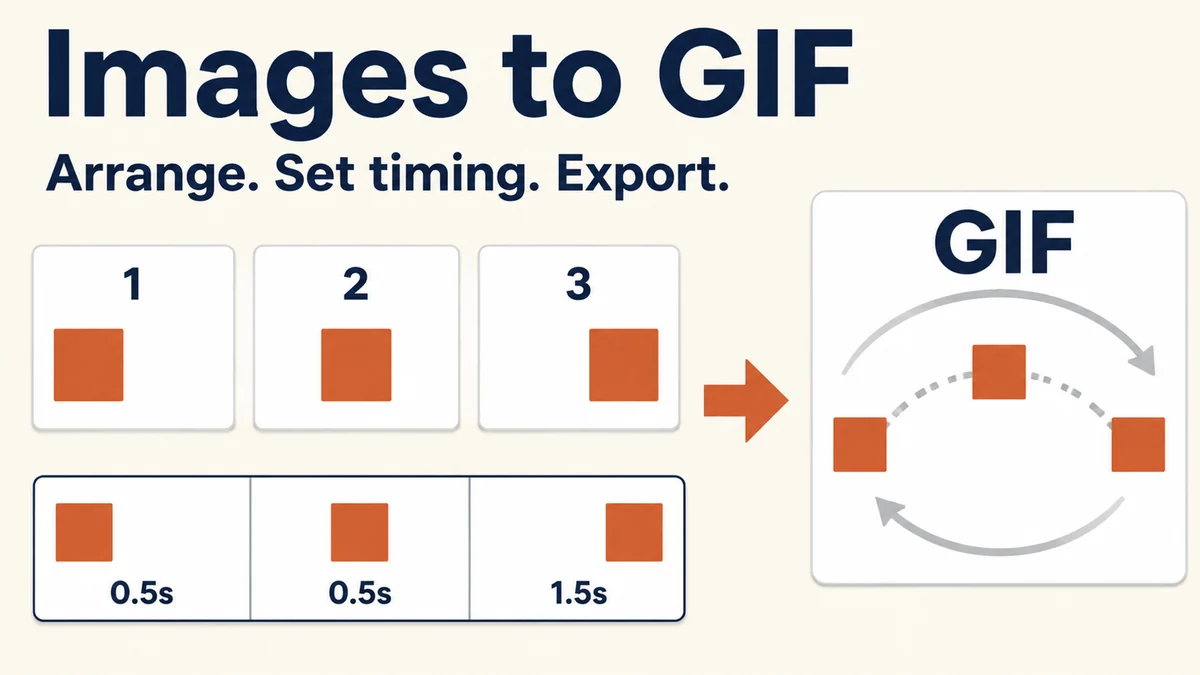
For example, three pictures at 50, 50, and 150 centiseconds form a 2.5-second cycle. The longer ending gives the viewer time to see the result. For a repeating motion, try more even spacing first. If one position seems to flash past, lengthen that frame rather than slowing every picture. These values are starting examples, not universal animation settings.
Keep the canvas and loop consistent
GIFFrame fits each imported picture proportionally inside a canvas based on the sequence's largest width and height, then centers it. Pictures with different aspect ratios can leave space along the edges. Preparing pictures with matching dimensions gives you more control over the composition. Check the edges of every frame, especially when mixing portrait photos with wide screenshots or a tightly cropped logo.
Watch the transition from the last picture back to the first. For an explanation, an obvious return to the starting state may be useful. For an animation, it may feel like a jump. Choose source pictures whose ending and beginning relate clearly, or make the last pause intentional. Adding the first picture again at the end can create a hold, but does not guarantee a seamless motion.
Export, reopen, and compare at the intended size
Export the GIF, then reopen the saved file outside the editor. View it at approximately the size your audience will see. Text that is readable on a large preview can become too small in a message thumbnail. If the animation is explanatory, prioritize a clear crop and sufficient reading time over adding more frames. Keep the original pictures so you can revise the sequence later.
If the timing is right but the download is too large, use the GIF size reducer and compare the new file with the original. If all frames need to play faster or slower together, the GIF speed changer adjusts the existing delays. After either change, reopen the exported file and confirm that the explanation still works.
Frequently asked questions
Can I combine PNG and JPG pictures in one GIF?
Yes. GIFFrame accepts separate JPG, PNG, and WebP pictures in an image sequence. Check their dimensions and composition together, since different source formats do not automatically mean matching crops or consistent backgrounds.
Why does my GIF look like a slideshow?
The GIF shows the pictures you supplied in sequence. Widely different poses or long delays produce a slideshow effect. For smoother motion, prepare more closely spaced visual states and review their timing; the image-combining tool does not generate missing in-between pictures.