 GIFFrame
Compress GIF
Drop a GIF here
Processed on your device
Compress GIF files when an animation looks right but the file is too large to share. Open your GIF, choose an optimization level, and compare the original and processed sizes before downloading. You can start with lossless optimization for lettering and interface screenshots, then try stronger lossy settings when a smaller file matters more than fine detail. Processing happens in your browser. The result shows the actual file size, so you can decide whether another adjustment is useful before posting your animation.
How to compress GIF files
- Choose the animated GIF you want to shrink.
- Select an optimization level and set lossy to zero for a lossless first comparison.
- Click Optimize GIF and compare the original and resulting file sizes.
- Download the optimized GIF, open the saved file, and check the animation before choosing the version to share.
GIF compressor settings to reduce GIF size
The GIF size reducer offers three optimization levels: O1, O2, and O3. These control how the encoder looks for a more efficient representation of the animation. Set the lossy value to zero when you want a first result without deliberately discarding image detail. Compare the reported bytes before deciding whether the improvement is enough. A file that has already been optimized may change very little, while a less efficient export can offer more room for savings. Keep the original available so you can compare both versions at the same display size, rather than judging the result from a small thumbnail.
Compress GIFs for chats, tutorials, and small uploads
A GIF size reducer is useful for reaction images, short product demonstrations, email illustrations, and tutorial loops. Different content calls for different comparisons. For a screenshot with small labels, begin with lossless settings and inspect the lettering. For a photographic reaction, a modest loss of fine detail may be acceptable if the expression remains clear. For a long tutorial, ask whether every step needs to be in the same loop. Splitting separate explanations into shorter animations can improve readability as well as delivery size. Treat the audience and display position as the starting point for choosing a useful export.
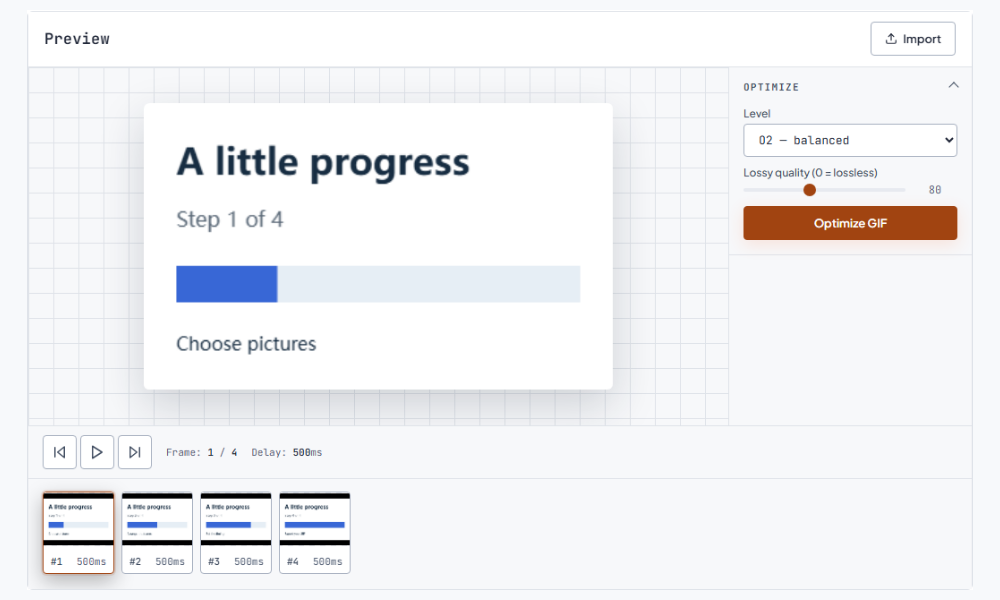
Compress GIF files with controlled quality changes
The lossy control ranges from 0 to 200, with 80 as the initial setting. A higher value allows more visual change during optimization; it is not a percentage reduction or a promised final size. Try one value, inspect the result, and move gradually rather than changing several settings together. Watch textured areas, gradients, and the boundary around moving objects. If an extra reduction makes a label harder to read, return to the earlier version. The GIF size reducer is most useful when you compare the practical benefit in bytes against the detail your viewers need to understand the animation.
Compress GIF to 256KB
To compress GIF to 256KB, start with an optimization level and create a first comparison. Set lossy to 0 if preserving small lettering is the priority, then increase it gradually when you need more savings. Download the optimized GIF and compare its actual bytes with the upload limit. This tool uses adjustable compression settings rather than an automatic target-size control. If the result is still too large, resize a copy or remove unnecessary frames in the editor, then optimize again. Keep a margin below the stated ceiling so rounded file-size labels do not hide an oversized result.
Compress GIF for Discord
Compress GIF for Discord after checking the upload context you plan to use. An emoji, a message attachment, and another image field can have different requirements, so use the limit shown for that destination. If the picture already has suitable dimensions, start with the compressor. If it is much larger than its intended display size, resize it first. Download the optimized copy, check the full loop and small text, then try that file in Discord. Keep the original available so you can produce another version for a different field. Continue with the resize GIF for Discord.
Compress GIF to 100KB
A 100KB target leaves less room for a long or detailed animation. Start with the shortest sequence that still communicates the action, and keep the canvas only as large as the viewer needs. Use the GIF compressor to compare optimization levels and lossy settings on that copy. Keep the original so you can compare alternatives. If the result becomes unreadable before it meets the target, simplify the source artwork or shorten the sequence instead of increasing the lossy value further. Read the destination's size unit and compare actual bytes before uploading.
Compression, resizing, and timing solve different problems
Compression changes the file representation; resizing changes how many pixels are in each frame. Shortening the sequence removes content, while a speed change mainly changes frame delays. Speeding up the same frames does not reliably make their encoded data smaller. Choose the operation that addresses your problem: optimization for excess encoding cost, resizing for an oversized canvas, and frame editing for repeated content. If the current dimensions are appropriate and the loop already communicates clearly, use the GIF size reducer first. If the animation is much larger than its display area, resize a copy before making the next compression comparison.
Use the GIF size reducer to check the complete loop
Download the processed GIF and watch it through at its intended display size. Check the first frame, the busiest movement, any text-heavy pause, and the return from the last frame to the first. A smaller file is useful only if the animation still explains or expresses what you intended. Keep your source version alongside the selected export, particularly when you may need a different size for another destination. For a sequence built from screenshots, saving those original images also makes it easier to revise wording or timing later without repeatedly processing an already compressed copy.
Frequently asked questions
Does the GIF size reducer always make a file smaller?
An already optimized file may offer little saving. Compare the reported sizes and keep the original when the new result offers no useful improvement.
Can I compress a GIF without losing quality?
Set lossy to zero and compare optimization levels. This avoids intentional lossy changes, although the available reduction depends on the source file.
Is a file upload to a server required?
The animation is processed in your browser. Open a local GIF, adjust the settings, and save the chosen result to your device.