Use GIF tools to make and edit animations in your browser.在浏览器中制作和编辑 GIF 动画
GIFFrame brings together GIF tools for making an animation from pictures and editing one you already have. Choose a tool in the navigation to open its workspace, select your images or GIF, and preview the changes before saving. You can arrange pictures, compress an oversized file, change dimensions or timing, reverse playback, extract stills, and remove a solid background color. Each tool has its own page with steps and examples. Processing takes place in your browser, so the animation files stay on your device.GIFFrame 提供图片合成和动图编辑工具。通过上方导航打开对应工作区,选择图片或 GIF,预览修改后保存。你可以排列图片、压缩体积、修改宽高或时间、倒放、提取静态帧,也可以移除纯色背景。每个工具都有独立页面,操作步骤与示例放在工具下方。处理在浏览器中完成,动画文件保留在你的设备上。
News and updates更新日志
Dedicated pages for each GIF tool每个 GIF 工具都有独立页面
Open a tool directly from the navigation, choose a file, and find the steps below the tool. The new speed tool applies your multiplier to the exported GIF.可以从导航直接打开工具、选择文件,并在工具下方查看步骤。新的调速工具会将倍速写入导出的 GIF。
Editor and session recovery improvements编辑器与会话恢复改进
The editor gained an updated workspace, clearer frame information, and better recovery for locally saved sessions.编辑器更新了工作区,提供更清晰的帧信息,并改进了本地会话恢复。
Choose GIF tools for the file you have根据手上的素材选择工具
Start with the source material and the result you need. If you have JPG, PNG, or WebP pictures, the image maker turns them into a sequence with adjustable frame delays. If you already have an animated GIF, open the tool for the change you want to make. A large file calls for compression; a canvas that looks too wide calls for resizing. Separating those two decisions avoids shrinking a picture unnecessarily when its dimensions already suit the destination. For several edits together, the advanced editor combines frame, timing, and canvas controls in a single workspace. Continue with the image to GIF.先看素材,再决定要达到的结果。如果手上是 JPG、PNG 或 WebP,图片制作工具可以将它们排列为带有帧时间的动画。如果已有 GIF,则按修改目标打开对应工具。文件体积过大适合压缩,画面宽高不合适则应调整尺寸。把这两个问题分开,可以避免在尺寸已经合适时继续缩小画面。需要连续进行多种修改时,也可进入高级编辑器。 接下来可以使用图片转 GIF。
Make a loop from pictures with online GIF tools从图片制作容易看懂的循环
A useful animation shows a change the reader can follow. For a product tutorial, prepare screenshots in a consistent size and keep the important interface area in roughly the same position. Arrange the pictures on the timeline, then give text-heavy steps a longer pause than simple visual transitions. Watch the last frame return to the first because that jump is part of every repeated loop. For a photo sequence, choose pictures that contribute something different rather than filling the timeline with near duplicates. Keep the original pictures so you can revise the timing or make another version without starting from a compressed export.好懂的动画要让观众看清变化。制作产品教程时,可以先准备尺寸接近的截图,让重要界面区域保持在相近位置,再到时间轴排列。文字较多的说明帧适合停留更久,简单过渡则可以短一些。循环会从最后一帧直接回到第一帧,因此首尾也要一起检查。照片序列应选择有不同内容的图片,减少无意义的重复,同时保留原图方便之后修改。
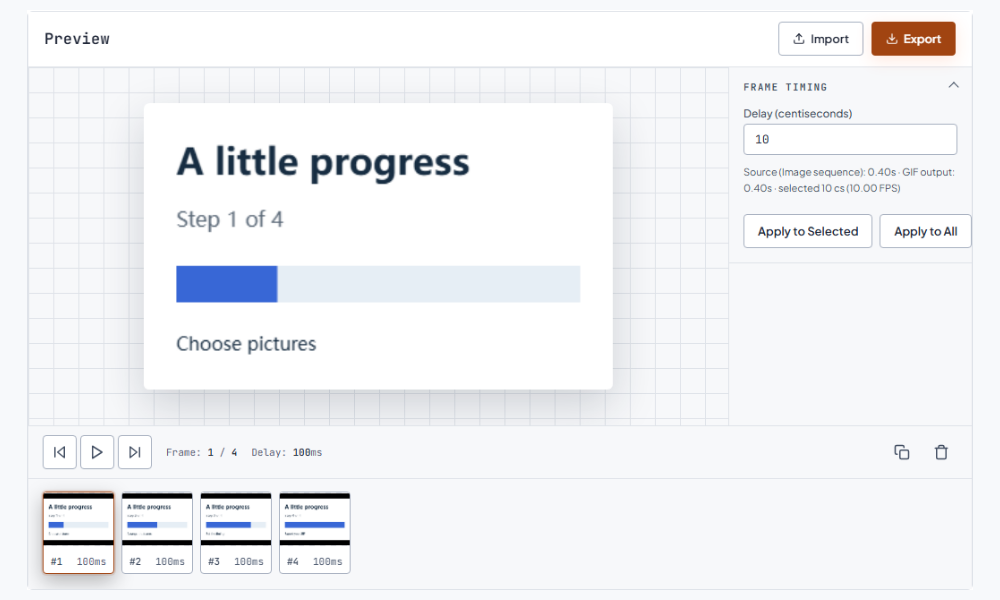
The GIFFrame workspace: preview the animation and inspect its frame timeline.GIFFrame 工作区:预览动画,并检查帧时间轴。
Prepare animations for sharing分享前分别检查体积与尺寸
Sharing involves both the picture and the file that carries it. Check how large the animation will appear, then compare its downloaded size with the destination field. Compression offers a first step when the canvas is already appropriate. Resizing is useful when the original is much larger than its display area. A Discord-oriented resize preset is a convenient starting size, while a custom width and height suit other placements. The destination still determines whether a file is accepted. Preview the saved animation at its intended display size and make sure small labels remain readable before choosing the final copy. Continue with the GIF size reducer.分享前,既要检查画面,也要检查文件。先确定实际显示大小,再比较下载文件与目标入口的体积要求。画布已经合适时可先压缩;原件远大于显示区域时则可先缩放。Discord 表情预设可以提供尺寸起点,其他场景也能自定义宽高。是否接受文件仍由目标入口决定。最终应在实际显示大小下预览,确认小字仍能阅读。
Adjust pace and direction without rebuilding the pictures通过时间和方向改变表达
Timing and order can change the meaning of the same images. A speed adjustment writes different delays into the exported GIF, so a short tutorial can pause longer or a slow reaction can feel tighter. Reversing changes the frame order, turning an opening movement into a closing one or making a simple action look unexpected. Preview the exported copy rather than relying only on a player setting. If you apply several timing changes while exploring, reopen the original before comparing independent versions. This makes it easier to tell whether a new pace improves the explanation or merely makes the loop shorter.相同图片也能通过节奏和顺序表达不同意思。调速会把新的停留时间写入导出 GIF,让教程更容易阅读,或让缓慢反应更紧凑。倒放会反转帧顺序,例如把打开动作变成关闭动作。请查看导出副本,而不是只依赖播放器的速度设置。尝试多个时间版本时,可重新打开原件后分别处理,方便判断哪一种节奏真正改善了表达。
Reuse frames and clean up a solid background复用静态帧并整理纯色背景
Sometimes the next task needs a still picture rather than another animation. Frame extraction saves numbered PNG images in a ZIP so you can choose a representative moment, study poses, or rebuild a shorter sequence. Keep a note of important original delays if the new animation should preserve its rhythm. For simple graphics, background color removal can make the surrounding field transparent. Choose a color different from the subject and inspect all frames after applying the edit. Matching colors inside the subject are affected as well, so a clean, contrasting source background gives you a better starting point. Continue with the GIF frame extractor.后续工作有时需要静态图而非新动画。拆帧会把编号 PNG 打包为 ZIP,便于选择代表性时刻、观察姿态或重建较短序列。要保留原来的节奏时,可以另外记录重要停顿。简单图形还可以通过移除背景色获得透明区域。选色后应检查全部帧,因为主体内部的匹配颜色也会受影响;清楚且与主体不同的底色更适合作为起点。 接下来可以使用提取帧。
A focused page or the advanced editor?独立工具页和高级编辑器怎么选?
Use the dedicated GIF tools when one change will finish the task. Their pages bring the relevant controls into view and place instructions below the workspace. The advanced editor is useful when a project needs a combination of frame editing, canvas changes, and timing work before export. Both approaches work with files you provide. You can use a design application to prepare new artwork, then bring the exported pictures here for sequencing. For future revisions, keep the original alongside your finished copy and name different exports clearly. A small collection of source files is often more useful than repeatedly editing the last downloaded result.一次修改就能完成任务时,独立工具页更直接:相关控件集中展示,步骤放在工作区下方。如果项目需要先改帧、再改画布、最后调整时间,则可以在高级编辑器中连续操作。两种方式都使用你提供的素材。新图形可以先在设计软件中准备,再把导出的图片放到这里排列。建议保留原件并清楚命名不同导出版本,后续修改时更容易找到合适起点。
Frequently asked questions常见问题
Are these GIF tools free to use?这些工具可以免费使用吗?
The local browser workflows do not require an account or a paid export. Choose the relevant tool, open a file, and save your result. Large animations can take longer because your device does the processing.本地浏览器处理流程不需要账号或付费导出。选择对应工具、打开文件后即可保存结果。大动画由设备处理,可能需要更长时间。
Which operation should I try first?应该先用哪个工具?
Choose the one change that addresses your problem: create from pictures, compress file bytes, resize pixel dimensions, adjust timing, reverse order, extract frames, or remove a solid color. Preview that result before combining edits.先选择直接解决问题的操作:图片合成、体积压缩、像素缩放、时间调整、帧顺序倒放、提取帧或移除纯色。先检查这一项的结果,再决定是否组合其他修改。
 GIFFrame