 GIFFrame
Drop a GIF here将 GIF 拖到这里
Processed on your device在设备上处理
A GIF size reducer helps when an animation looks right but the file is too large to share. Open your GIF, choose an optimization level, and compare the original and processed sizes before downloading. You can start with lossless optimization for lettering and interface screenshots, then try stronger lossy settings when a smaller file matters more than fine detail. Processing happens in your browser. The result shows the actual file size, so you can decide whether another adjustment is useful before posting your animation.动图效果满意,文件却太大时,可以先用 GIF 体积压缩工具进行优化。打开文件,选择优化级别,比较原件与处理结果的大小,再下载需要的版本。文字和界面截图可以从无损优化开始;更看重体积的素材则可逐步尝试有损设置。处理在浏览器中完成,结果会显示实际文件大小,方便你判断是否需要继续调整。
Processed on your device在设备上处理
The GIF size reducer offers three optimization levels: O1, O2, and O3. These control how the encoder looks for a more efficient representation of the animation. Set the lossy value to zero when you want a first result without deliberately discarding image detail. Compare the reported bytes before deciding whether the improvement is enough. A file that has already been optimized may change very little, while a less efficient export can offer more room for savings. Keep the original available so you can compare both versions at the same display size, rather than judging the result from a small thumbnail.工具提供 O1、O2、O3 三个优化级别,用来选择动画编码的优化方式。希望先保留画面细节时,可将有损值设为零,然后比较实际字节数。如果原件已经优化过,体积变化可能不明显;编码较低效的文件则可能有更多压缩空间。请保留原件,并在相同显示尺寸下比较两个版本,避免只看缩略图而忽略细小文字或边缘的变化。
A GIF size reducer is useful for reaction images, short product demonstrations, email illustrations, and tutorial loops. Different content calls for different comparisons. For a screenshot with small labels, begin with lossless settings and inspect the lettering. For a photographic reaction, a modest loss of fine detail may be acceptable if the expression remains clear. For a long tutorial, ask whether every step needs to be in the same loop. Splitting separate explanations into shorter animations can improve readability as well as delivery size. Treat the audience and display position as the starting point for choosing a useful export.反应图、产品演示、邮件插图和教程循环,都可以通过压缩减轻分享负担。不同素材应采用不同的检查重点:小字截图先试无损并检查文字;照片类反应图可以观察表情是否清楚,再决定能否接受少量细节变化。较长教程则要判断是否必须放在同一个循环里。把不同说明拆成较短动画,既便于阅读,也能减少单个文件的分享压力。
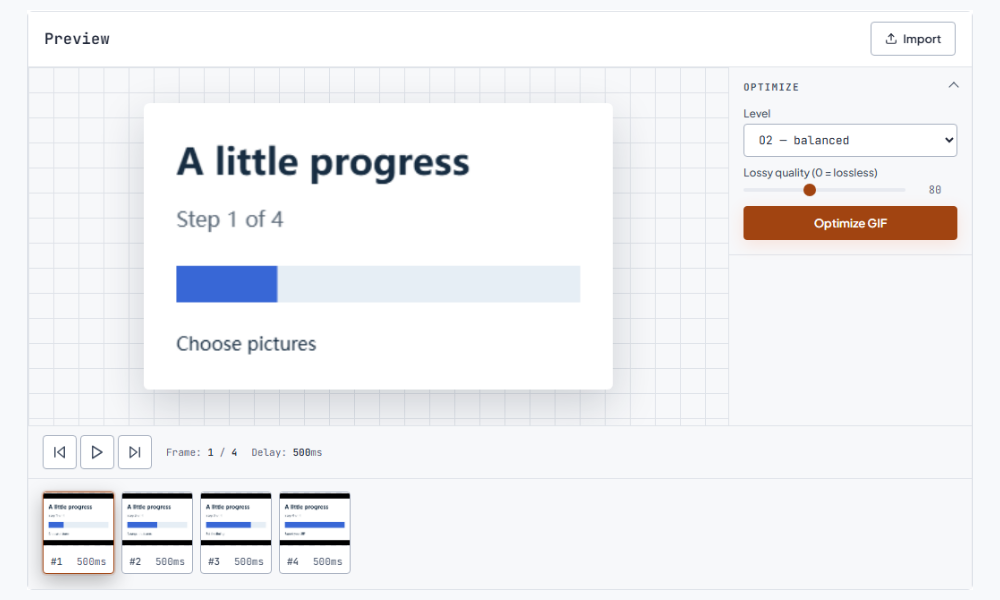
The lossy control ranges from 0 to 200, with 80 as the initial setting. A higher value allows more visual change during optimization; it is not a percentage reduction or a promised final size. Try one value, inspect the result, and move gradually rather than changing several settings together. Watch textured areas, gradients, and the boundary around moving objects. If an extra reduction makes a label harder to read, return to the earlier version. The GIF size reducer is most useful when you compare the practical benefit in bytes against the detail your viewers need to understand the animation.有损参数范围为 0 到 200,初始值为 80。提高数值意味着允许更多画面变化,并不代表固定的压缩百分比或目标大小。建议一次调整一个参数,观察结果后再逐步增加。重点检查纹理、渐变和移动物体的边界。若继续压缩导致标签难以阅读,就回到上一个版本。衡量压缩是否值得,应同时看节省的字节和观众必须看清的信息。
Start by checking the destination field and its stated size unit. Export a first version with the GIF size reducer, then compare its actual size with that requirement. If it is still too large, reducing the pixel dimensions often changes the result more noticeably than another small encoder adjustment. Remove repeated or unnecessary frames when you can do so without breaking the explanation. Re-export and measure after each change. There is no automatic exact-byte target in this tool, so the final check is the downloaded file size and a test in the destination field. Keep some room below a strict upload ceiling. Continue with the resize GIF for discord.先查看目标上传入口注明的体积和单位,再压缩一次并比较实际文件大小。若仍然超限,缩小像素尺寸通常比继续微调编码参数更明显。也可以删除重复或无助于说明的帧,再重新导出测量。这个工具没有自动精确匹配目标字节的功能,因此最终以下载文件的体积和目标入口的上传结果为准。遇到严格限制时,可以适当留出余量。 接下来可以使用改尺寸。
Compression changes the file representation; resizing changes how many pixels are in each frame. Shortening the sequence removes content, while a speed change mainly changes frame delays. Speeding up the same frames does not reliably make their encoded data smaller. Choose the operation that addresses your problem: optimization for excess encoding cost, resizing for an oversized canvas, and frame editing for repeated content. If the current dimensions are appropriate and the loop already communicates clearly, use the GIF size reducer first. If the animation is much larger than its display area, resize a copy before making the next compression comparison.压缩改变文件的编码方式,改尺寸改变每帧像素数量,删帧减少内容,而调速主要改变停留时间。同样的一组帧播放得更快,并不一定让编码数据更少。请按问题选择操作:编码冗余先优化,画布过大先缩放,内容重复再删帧。如果尺寸和表达已经合适,可以先压缩;如果动画远大于实际显示区域,则先缩小副本,再进行下一次比较。
Download the processed GIF and watch it through at its intended display size. Check the first frame, the busiest movement, any text-heavy pause, and the return from the last frame to the first. A smaller file is useful only if the animation still explains or expresses what you intended. Keep your source version alongside the selected export, particularly when you may need a different size for another destination. For a sequence built from screenshots, saving those original images also makes it easier to revise wording or timing later without repeatedly processing an already compressed copy.下载后在实际使用尺寸下完整播放,检查第一帧、动作最多的位置、文字停顿和首尾衔接。体积缩小的前提是表达仍然清楚。建议把原始版本与选中的导出文件一起保留,方便之后为其他平台制作不同尺寸。如果素材来自截图,也应保留原图,以便修改文字或时间时从源素材重新制作,减少反复处理已压缩副本的需要。
An already optimized file may offer little saving. Compare the reported sizes and keep the original when the new result offers no useful improvement.已经优化过的文件可能变化不大。比较结果大小,如果没有实际收益,可以继续使用原件。
Set lossy to zero and compare optimization levels. This avoids intentional lossy changes, although the available reduction depends on the source file.将有损值设为零,再比较优化级别,即可避免主动舍弃细节;能缩小多少取决于原件。
The animation is processed in your browser. Open a local GIF, adjust the settings, and save the chosen result to your device.动画在浏览器中处理。选择本地 GIF、调整设置后,将选中的结果保存到设备。